Working with both Android and Mac devices has always created challenges when it comes to file sharing. Many people use an Android phone every day but depend on a Mac for work, study, or personal tasks. Moving files between these two platforms is often harder than it should be.
Apple users can quickly send files between Apple devices using AirDrop. The process is fast, simple, and built directly into the Apple ecosystem. However, Android users cannot use AirDrop with a Mac, which creates a gap between the two platforms.
Google offers Quick Share, which works very well between Android devices and Windows computers. Unfortunately, there is no official Quick Share application for macOS. Because of this limitation, many users rely on cloud storage services, email attachments, messaging apps, or USB cables to move files. These methods work, but they often slow down the workflow and add extra steps.
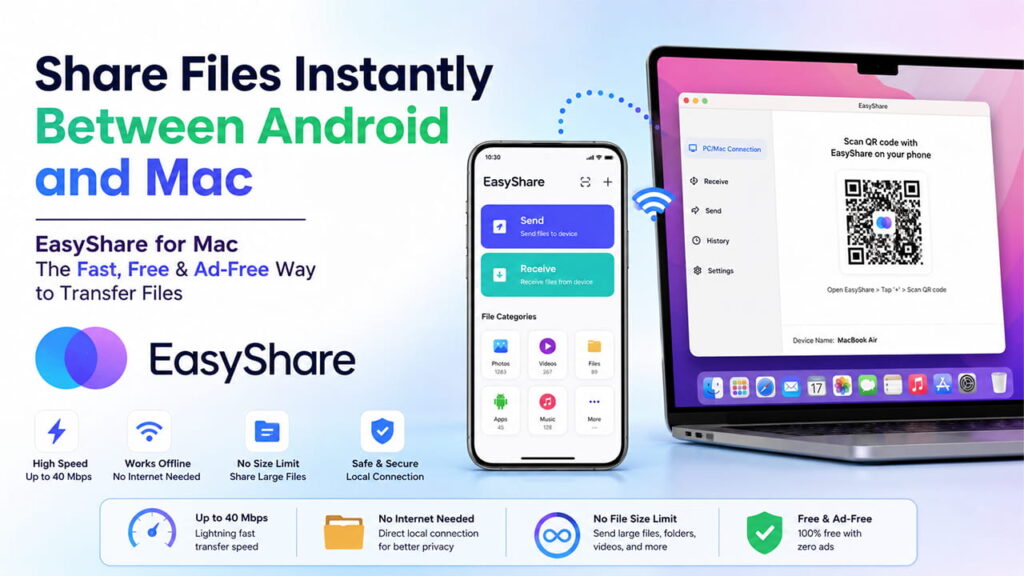
EasyShare from Vivo has become a practical solution for this problem. It provides a fast and simple way to transfer files between Android devices and Mac computers. Since it works through a local wireless connection, users can enjoy an experience that feels very similar to AirDrop. The app is also free to use and does not contain advertisements, making the overall experience much cleaner.
The Cross-Platform File Transfer Problem
The biggest challenge with local file transfers comes from the technology used by different companies. Apple and Google have built their own systems for discovering and connecting nearby devices.
AirDrop uses a combination of Bluetooth Low Energy (BLE) and Peer-to-Peer (P2P) Wi-Fi. These technologies allow Apple devices to find each other and transfer files quickly.
Google Quick Share uses Bluetooth and Wi-Fi Direct to provide a similar experience for Android users.
The problem is that these technologies are designed mainly for their own ecosystems. Apple does not provide native AirDrop support for Android devices. In the same way, Google does not offer an official Quick Share client for macOS. As a result, direct communication between Android phones and Mac computers becomes difficult.
Many third-party solutions have tried to solve this issue over the years. However, some applications include intrusive advertisements, require paid subscriptions, or raise concerns about data privacy and security.
EasyShare approaches the problem differently. Instead of relying on Apple or Google discovery systems, it creates a local wireless connection using standard Wi-Fi technology. This allows Android phones and Mac computers to communicate directly. Since Vivo maintains the application, it remains free, ad-free, and optimized for multiple operating systems.
How EasyShare for Mac Works
EasyShare can reach transfer speeds of up to 40 Mbps. This is much faster than traditional Bluetooth transfers and makes it suitable for sending large files.
The application does not depend on the internet for file transfers. Instead, it uses a local Wi-Fi connection or a local area network (LAN) to move data directly between devices. Because the data stays on the local network, transfers are usually faster and more efficient.
| Feature | Apple AirDrop | Google Quick Share | Vivo EasyShare |
|---|---|---|---|
| Mac Compatibility | Native (Built-in) | Not Available | Supported Through App |
| Android Compatibility | Not Available | Native (Built-in) | Supported Through App |
| Maximum Transfer Speed | Around 30–50 Mbps | Around 40–50 Mbps | Up to 40 Mbps |
| Internet Required | No | No | No |
| Cost | Free | Free | Free |
| Advertisements | No | No | No |
Another advantage is the lack of file size limits. Large files such as 4K videos, high-resolution photo collections, project folders, and other large data sets can be transferred without relying on cloud storage. EasyShare uses the available bandwidth of the local network to complete transfers as quickly as possible.
Step-by-Step Guide to Transfer Files Between Android and Mac
To use EasyShare for Mac, the application must be installed on both the Android phone and the Mac computer.
Requirements
Before starting, make sure:
- Wi-Fi is enabled on both devices.
- Bluetooth is enabled on both devices.
- EasyShare is installed on the Android phone.
- EasyShare is installed on the Mac.
Phase 1: Connect the Devices
- Open EasyShare on the Mac.
- Select the PC/Mac Connection option from the main screen.
- A unique QR code will appear on the Mac display.
- Open EasyShare on the Android phone.
- Tap the Scan or + icon in the upper-right corner.
- Use the phone camera to scan the QR code displayed on the Mac.
- Once the QR code is scanned, the devices will establish a secure local connection automatically.
The connection process usually takes only a few seconds.
Phase 2: Transfer Files
Android to Mac
- Open EasyShare on the Android phone.
- Browse through categories such as Photos, Videos, Files, or Apps.
- Select the items that need to be transferred.
- Tap Send.
The selected files will be transferred directly to the designated download folder on the Mac.
Mac to Android
- Open EasyShare on the Mac.
- Locate the files or folders that need to be transferred.
- Drag and drop the selected items into the EasyShare application window.
The files will be sent directly to the Android device and saved to its storage.
Troubleshooting Common Problems
Although EasyShare is generally reliable, some network conditions or system settings can occasionally cause issues. The following solutions can help resolve the most common problems.
Problem 1: QR Code Will Not Scan or Connection Fails
Possible Cause
Network restrictions, client isolation settings, or different Wi-Fi bands may prevent the devices from connecting properly. For example, one device may be connected to a 2.4 GHz network while the other is connected to a 5 GHz network.
Solution
Check that both devices are connected to the same Wi-Fi network. Verify that they are using the same network name (SSID).
If the network uses client isolation, such as some public, enterprise, or hotel networks, enable EasyShare’s Hotspot Mode. This creates a direct local connection between the Android phone and the Mac without depending on the existing network.
Problem 2: Slow Transfer Speeds
Possible Cause
Wireless interference, network congestion, or heavy background activity can reduce transfer performance.
Solution
Use a 5 GHz Wi-Fi connection whenever possible. This usually provides higher speeds and less interference than a 2.4 GHz connection.
It can also help to pause bandwidth-heavy activities on the Mac, including:
- Cloud backups
- Large downloads
- System updates
- Streaming services
- Torrent applications
Reducing background network usage allows more bandwidth for file transfers.
Problem 3: macOS Blocks the Application
Possible Cause
macOS includes a security feature called Gatekeeper. Sometimes it restricts applications that are not downloaded through the Mac App Store.
Solution
If EasyShare does not open after installation:
- Open System Settings.
- Go to Privacy & Security.
- Scroll to the security section.
- Locate the EasyShare notification.
- Click Open Anyway.
This grants permission for the application to run on the Mac.
Final Thoughts
For Android users who regularly work on a Mac, file sharing has traditionally been inconvenient. AirDrop remains exclusive to Apple devices, while Quick Share does not officially support macOS. As a result, many users have relied on cloud services, messaging apps, or cables to move files between devices.
EasyShare helps close this gap by providing a direct local connection between Android phones and Mac computers. It offers fast transfer speeds, support for large files, no internet requirement, and a clean ad-free experience. The simple QR code connection process makes file transfers quick and easy, helping users move data between platforms without interrupting their workflow.