Android gives users a lot of freedom to manage files. It is easy to move, copy, rename, and organize files without many limits. However, Android still does not include a built-in tool that lets users protect individual files or folders with a custom password. Because of that, many people look for another way to keep private files safe.
One of the best methods is creating an encrypted archive. This puts files inside a password-protected ZIP or 7Z file. As a result, nobody can open the files without entering the correct password. This method works well for personal documents, financial records, work files, photos, videos, and other sensitive data stored on the device or shared through cloud storage.
ZArchiver APK is a powerful archive management app for Android. Besides creating compressed files, it also supports strong AES-256 encryption. This guide explains the complete process of protecting Android files with a password by using ZArchiver.
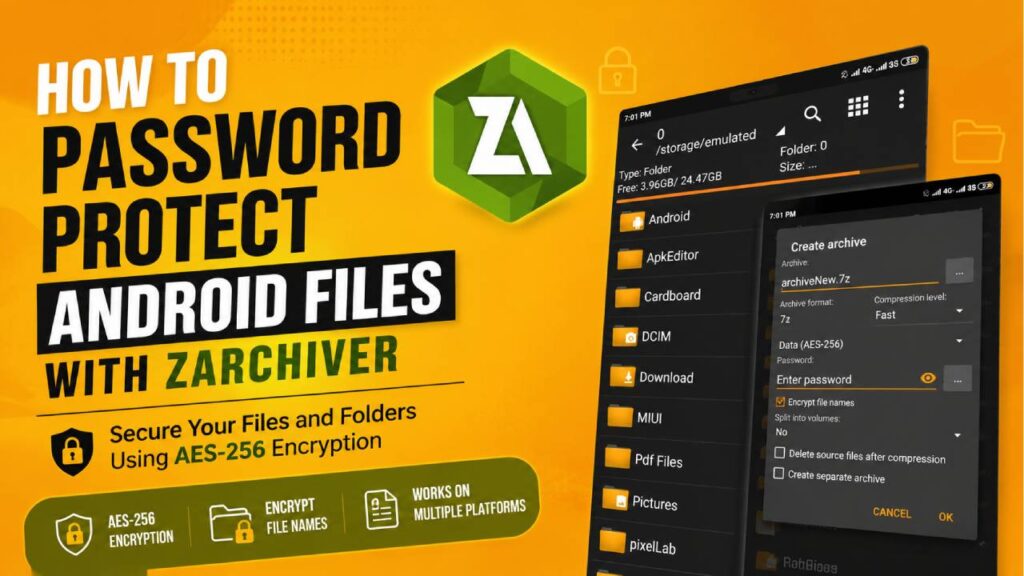
Why Choose ZArchiver for Local Android Encryption?
Unlike many basic file manager apps, ZArchiver does much more than simply organize files. It can create ZIP and 7Z archive files while adding strong password protection. This gives users better security for important files.
AES-256 Encryption
ZArchiver supports AES-256 encryption. This is a modern encryption standard that is much stronger than the older ZipCrypto method. It helps protect files against unauthorized access and makes password guessing much harder.
File Name Protection
The 7Z archive format includes another useful security feature. It can encrypt file names along with the files themselves. Because of this, anyone without the correct password cannot even see the names or file types stored inside the archive. This provides an extra layer of privacy.
Works Across Different Operating Systems
Files encrypted with ZArchiver on Android are not limited to Android devices. Password-protected ZIP and 7Z archives can also be opened on Windows with 7-Zip or WinRAR. They also work on macOS and Linux using compatible archive software. This makes sharing encrypted files much easier across different platforms.
Step-by-Step Guide to Password-Protect Files
Before starting, install the official version of ZArchiver. Using the official version helps avoid modified or unsafe APK files that may put your data at risk.
Step 1: Allow Storage Permissions
The first time ZArchiver opens, Android will ask for storage permission. This is required so the app can access files stored on the device.
Open ZArchiver.
When the “All files access” permission window appears, tap OK.
Turn on Allow access to manage all files.
On Android 11, Android 12, Android 13, Android 14, and newer versions, some folders have extra system protection. If files are stored inside locations such as Android/data or Android/obb, ZArchiver will open the Android document picker.
Select Use this folder to give permission for that specific folder. Without this permission, ZArchiver cannot read or save files in those protected locations.
Step 2: Choose the Files or Folders
Browse through the folders inside ZArchiver until the required files are found.
To protect a single folder, press and hold the folder. A menu will appear. Choose Compress.
To protect several files at the same time, tap the small icons beside each file. Every selected file will turn green.
After selecting all required files, tap the green checkmark button or the action menu and then choose Compress.
Step 3: Set the Encryption Options
The archive settings window will now appear.
For better security, use the following settings.
| Setting | Recommended Option | Reason |
|---|---|---|
| Archive Format | 7Z or ZIP | Both formats support password protection. However, 7Z also allows file name encryption. |
| Compression Level | Normal or Fast | These settings give a good balance between speed and file size. Higher levels use much more memory. |
| Password | Strong password | Use a long password with letters, numbers, and special characters. |
| Encryption Method | AES-256 | Provides much stronger protection than older encryption methods. |
| Encrypt File Names | Enable (7Z only) | Prevents people from seeing file names without entering the password. |
After checking all settings, enter the password carefully.
Tap OK.
ZArchiver will begin creating the encrypted archive. Wait until the progress bar finishes. After the process is complete, a new password-protected archive file will appear in the current folder.
Troubleshooting and Useful Tips
Sometimes problems can happen during compression or encryption. Most of these issues have simple solutions.
“Operation Completed with Errors” or “Access Denied”
This problem is common on Android 11 and newer versions because Google added stronger storage security.
If ZArchiver cannot read or write files, move those files into a normal user folder, such as Documents or Download.
After moving the files, try creating the archive again. In most cases, this solves the permission problem.
“Not Enough Memory” During Compression
The 7Z format can use a large amount of RAM when the Ultra or Maximum compression level is selected.
Devices with limited memory may stop the compression process automatically because Android closes apps that use too many system resources.
If this happens, lower the compression level to Fast, Normal, or Store. The archive may become slightly larger, but the process is much more stable and finishes successfully on most devices.
Forgotten Archive Password
AES-256 encryption is designed to protect data without any hidden recovery method.
If the archive password is forgotten, ZArchiver cannot recover it. The developers also cannot unlock the encrypted archive. Third-party recovery tools cannot bypass proper AES-256 encryption either.
Because of this, always store important passwords in a trusted offline password manager or another secure location. Keeping a backup of the password is the only reliable way to avoid losing access to encrypted files.