Running heavy mobile games on a smartphone often causes several problems. The phone can get very hot, the battery may wear out faster, and touch controls are not always the best choice for long gaming sessions. Because of this, many gamers, developers, and advanced users choose an Android emulator. An emulator lets a Windows computer run Android apps and games by using the computer’s hardware instead of a phone.
LDPlayer is one of the most popular Android emulators for Windows. It is designed to be fast, lightweight, and easy to use. The latest versions, including LDPlayer 9 and LDPlayer 14, support modern Android environments and work well with today’s mobile games and apps. They also support newer Android APIs and high frame rates, making gameplay smoother on supported hardware.
This How to Install LDPlayer on PC guide explains every step of the installation process. It covers system requirements, hardware virtualization, installation, first-time setup, performance settings, and common troubleshooting steps. By following these instructions, users can install LDPlayer correctly and get the best possible performance.
1. Check the PC System Requirements
Before downloading LDPlayer, make sure the computer meets the minimum system requirements. A system with low RAM, an old processor, or outdated graphics drivers may experience slow performance, frame drops, or loading problems. Some users may even notice the emulator stopping during startup, such as at the 94% loading screen.
| Component | Minimum Requirements | Recommended Specifications (High FPS Gaming) |
|---|---|---|
| Operating System | Windows 7, 8, 10, or 11 (32-bit or 64-bit) | Windows 10 or Windows 11 (64-bit) with the latest DirectX 12 updates |
| Processor (CPU) | Intel or AMD x86/x64 processor | Intel Core i5-7500, AMD Ryzen 5, or newer with VT support |
| Memory (RAM) | 4 GB | 8 GB or more |
| Storage | 10 GB free space | 36 GB to 100 GB of free space on an SSD |
| Graphics (GPU) | DirectX 11 or OpenGL 2.0 compatible graphics driver | NVIDIA GeForce GTX 750 Ti, AMD Radeon RX 550, or better |
Why an SSD Is Better
LDPlayer can run on both HDDs and SSDs. However, an SSD gives much better performance. The emulator creates virtual storage files to act like an Android device. These files are read and written often while games are running. An HDD is much slower during these tasks, which can cause loading delays, stuttering, and slow performance in large games. Installing LDPlayer on an SSD helps reduce these problems and improves the overall experience.
2. Enable Hardware Virtualization (VT)
Hardware virtualization is one of the most important requirements for LDPlayer. Intel processors use Intel VT-x, while AMD processors use AMD-V. This technology allows the emulator to run Android much faster by using the processor directly.
If virtualization is turned off, LDPlayer may become very slow. In some cases, the emulator may not start at all. Audio problems, lag, and poor performance are also common when virtualization is disabled.
Step 1: Check if Virtualization Is Enabled
- Press Ctrl + Shift + Esc to open Task Manager.
- Select the Performance tab.
- Click CPU.
- Look for the Virtualization status near the bottom of the window.
If it says Enabled, continue to the next section.
If it says Disabled, enable it through the BIOS or UEFI settings.
Step 2: Enable Virtualization in BIOS or UEFI
- Open the Start menu.
- Click Power.
- Hold the Shift key and click Restart.
- Go to Troubleshoot > Advanced Options > UEFI Firmware Settings.
- Click Restart.
The computer will open the BIOS or UEFI setup screen.
For Intel processors, look for one of these settings:
- Intel Virtualization Technology
- Intel VT-x
- Vanderpool Technology
Set the option to Enabled.
For AMD processors, look for:
- SVM Mode
- AMD-V
Set the option to Enabled.
Finally, press F10 to save the changes and restart the computer.
3. Install LDPlayer
For safety, always download the installer from the official LDPlayer website. This helps avoid modified installers or unwanted software.
Step 1: Download the Installer
Open a web browser and visit the official LDPlayer website.
Choose the version that matches the intended use. LDPlayer 9 and LDPlayer 14 are good choices for modern 64-bit Android games and applications.
Download the installer file, such as:
LDPlayer_9.0.exe
Save it to the computer.
Step 2: Start the Installation
Find the downloaded installer.
Right-click the file and select Run as administrator.
If the User Account Control (UAC) window appears, click Yes.
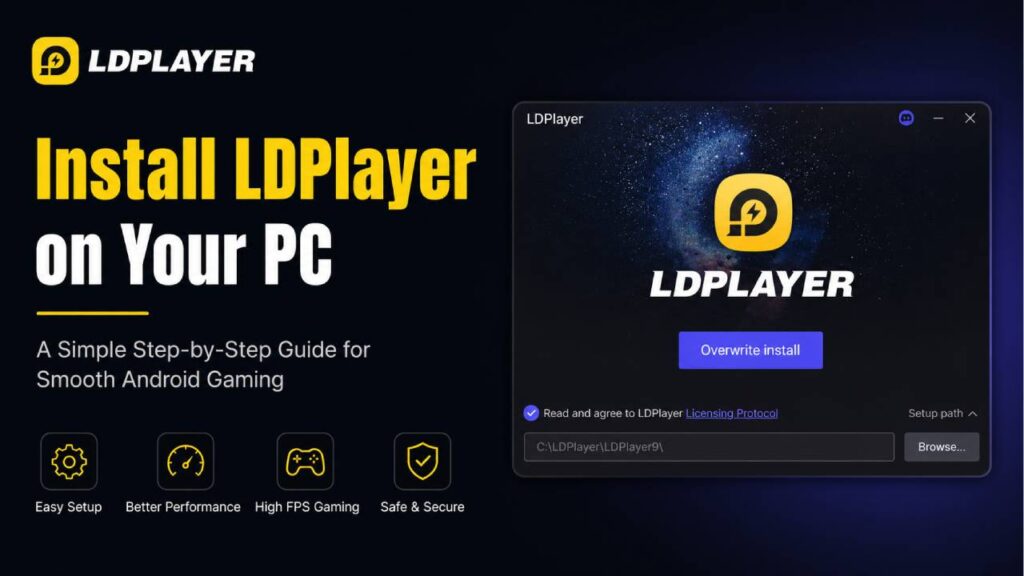
The installer window will open.
Instead of clicking Install immediately, review the installation options first.
Step 3: Choose a Custom Installation Folder
Click Custom or Setup Path.
Select Browse and choose the installation folder.
If possible, install LDPlayer on an SSD. A drive other than C: is also a good choice when storage space is limited.
Example:
D:\Program Files\LDPlayer\
Choosing a suitable location helps keep the system drive organized and can improve loading speed.
Step 4: Finish the Installation
Click Install.
The installer will download the remaining files and copy them to the selected folder.
Wait until the installation is complete.
Then click Start or Launch to open LDPlayer for the first time.
4. Complete the First-Time Setup
After LDPlayer starts, a few setup steps are required before downloading games or apps.
Open the System Apps folder.
Select Google Play Store.
Click Sign In.
Enter a Google account to access the Play Store. Signing in also allows cloud save synchronization, app updates, and purchase history.
Users who already have APK files can install them without using the Play Store. Simply drag and drop the APK file into the LDPlayer window, and the installation will begin automatically.
The built-in LD Store can also be used to download supported applications.
5. Improve Performance
LDPlayer includes several settings that can improve gaming performance. The best settings depend on the computer’s hardware.
Click the Settings icon on the right side of the emulator.
Open the Advanced tab.
Resolution
Choose the monitor’s native resolution, such as 1920 × 1080.
If the computer has limited hardware, lowering the resolution to 1600 × 900 or 1280 × 720 can increase frame rates and reduce GPU usage.
CPU Allocation
Assign 4 CPU cores if the processor has at least 6 or 8 threads.
Avoid assigning every available core to LDPlayer. Windows also needs processor resources to run smoothly.
RAM Allocation
Set memory according to the available system RAM.
- 4096 MB (4 GB) for mid-range systems.
- 8192 MB (8 GB) for higher-end systems.
Giving the emulator too much memory is not always helpful because Windows also needs enough RAM for background tasks.
Frame Rate Settings
Open the Game Settings tab.
Select the preferred frame rate.
- 60 FPS for normal gaming.
- 120 FPS or 240 FPS for supported games, high-refresh-rate monitors, and gaming graphics cards.
Click Save Settings, then select Restart Now to apply all changes.
6. Common Problems and Solutions
Hyper-V and Virtualization Conflicts
Some Windows features use hardware virtualization. Examples include Docker, Windows Subsystem for Linux (WSL), and Windows Sandbox.
Recent versions, such as LDPlayer 14, work better with Hyper-V than older releases. However, some users may still experience slower performance or startup problems.
If necessary, open Windows PowerShell as an administrator and run the following command:
bcdedit /set hypervisorlaunchtype off
Restart the computer after running the command.
If Hyper-V is needed again later, replace off with auto and restart the system.
LDPlayer Stops at 94%
If LDPlayer always stops at 94%, the problem is usually related to graphics drivers or the graphics rendering cache.
Try the following steps:
- Open the NVIDIA Control Panel or AMD Software.
- Make sure dnplayer.exe uses the dedicated graphics card instead of integrated graphics.
- Update the graphics driver using the official software provided by the GPU manufacturer.
Updated graphics drivers often include improvements for OpenGL and other graphics technologies used by Android emulators. These updates can solve loading problems, improve compatibility, and provide smoother gameplay.
Final Thoughts
Installing LDPlayer is simple when every step is completed in the correct order. First, confirm that the computer meets the hardware requirements. Next, enable hardware virtualization if it is disabled. Then install the emulator, complete the initial setup, and adjust the performance settings to match the available hardware.
Using an SSD, keeping graphics drivers updated, and choosing suitable CPU and RAM settings can make a noticeable difference during gameplay. If problems appear, checking virtualization, graphics settings, and Hyper-V configuration usually resolves the most common startup and performance issues.