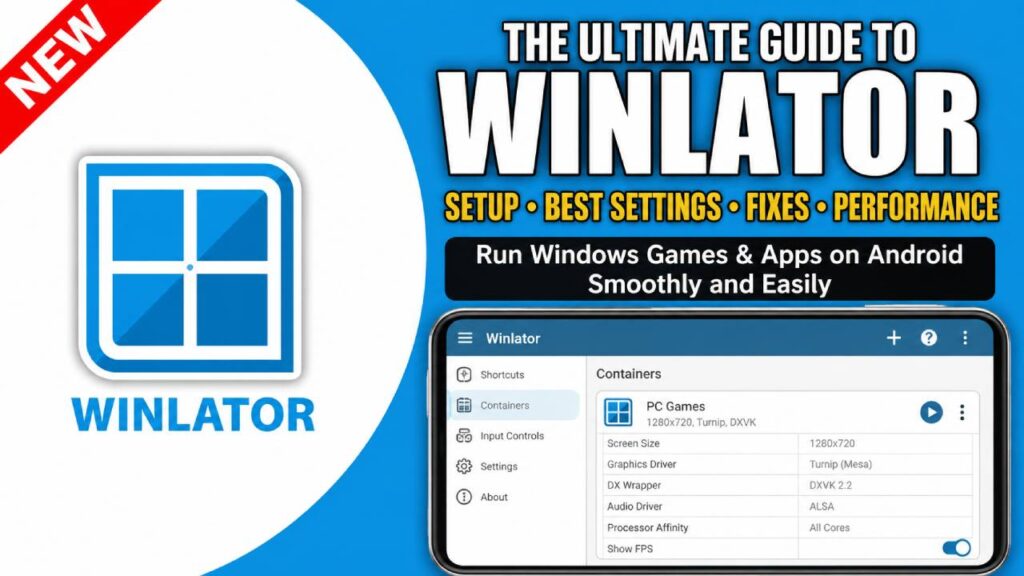
Winlator is one of the most popular open-source Android translation tools. It lets Android users run x86 and x86_64 Windows apps and PC games on ARM-based phones and tablets. It uses Wine, Box86/Box64, and custom Mesa graphics drivers to connect Windows desktop software with ARM mobile hardware.
This Winlator Frequently Asked Questions guide answers the most common technical questions. It covers hardware requirements, graphics settings, performance tips, and common problems with simple explanations.
Technical Foundations: What Is Winlator and How Does It Work?
What is Winlator?
Winlator is a free and open-source Android app created by BrunoSX. It creates a rootless Linux environment using PRoot. Inside this environment, it runs Wine and other translation layers. This allows Windows PC games and Windows executable (.exe) files to run on Android devices with ARM processors.
How does Winlator run Windows programs on ARM processors?
Winlator uses several software layers to run Windows programs.
Instruction Translation (Box86/Box64)
Box86 and Box64 translate x86 and x86_64 CPU instructions into ARM64 instructions in real time. This allows the phone’s processor to run Windows software.
API Compatibility (Wine)
Wine translates Windows system calls, file system operations, and registry requests into Linux-compatible operations.
Graphics Translation (DXVK / VKD3D / Mesa)
DXVK changes DirectX 9, 10, and 11 graphics calls into Vulkan. VKD3D does the same for DirectX 12. The Mesa Turnip driver then sends Vulkan commands directly to the Adreno GPU.
Windows Game (.exe)
    └─► Box86 / Box64 (x86 → ARM64 CPU Translation)
    └─► Wine (Windows API → Linux OS Translation)
    └─► DXVK / VKD3D (DirectX → Vulkan Graphics Translation)
    └─► Mesa Turnip Driver (Vulkan → Qualcomm Adreno GPU)
Hardware & System Requirements
What are the minimum and recommended hardware requirements for Winlator?
Winlator works on many Android devices running Android 8.0 or later. However, performance mainly depends on the processor and GPU driver support.
| Specification | Minimum Requirement | Recommended Specification |
|---|---|---|
| Operating System | Android 8.0 (Oreo) or higher | Android 12, 13, or 14 |
| Architecture | ARM64 (arm64-v8a) | ARM64 (arm64-v8a) |
| SoC / CPU | Qualcomm Snapdragon 700 series | Qualcomm Snapdragon 8 Gen 1, Gen 2, or Gen 3 |
| GPU | Adreno 600 series | Adreno 700 series (Adreno 730, 740, 750) |
| RAM | 6 GB | 8 GB to 12 GB with Virtual RAM enabled |
| Storage | 10 GB free space | 32 GB or more with UFS 3.1 or UFS 4.0 storage |
Why do Qualcomm Snapdragon chips perform better than MediaTek Dimensity or Samsung Exynos?
Qualcomm Snapdragon processors use Adreno GPUs. These GPUs support the open-source Mesa Turnip Vulkan driver. Turnip lets Winlator communicate with the GPU more directly, which reduces overhead and improves performance.
MediaTek Dimensity devices use ARM Mali GPUs, while Samsung Exynos devices use Mali or Xclipse GPUs. These GPUs do not support Turnip. They must use VirGL or Zink, which send graphics through standard OpenGL drivers. This can reduce performance, cause graphics problems, or even make some 3D games crash.
Installation, Setup, and Container Configuration
How do I install and set up Winlator for the first time?
To set up Winlator, create a Wine container by following these steps.
- Download the latest official Winlator APK from the official GitHub repository.
- Install the APK and open the app.
- Allow storage permission so Winlator can build the image filesystem (imagefs).
- Tap the + button in the top-right corner to create a new container.
- Set the screen resolution, graphics driver, and DX wrapper based on your device.
- Tap the checkmark to save the container.
- Open the three-dot menu and tap Run.
What container settings give the best compatibility and performance?
For most Qualcomm Snapdragon devices, these settings provide a good starting point.
- Screen Size: 1280×720
- Graphics Driver: Turnip (Mesa)
- DX Wrapper: DXVK 2.2 or DXVK 2.3 for DirectX 9, 10, and 11 games
- Show FPS: Enabled
- Processor Affinity: Enable all CPU cores, such as Core 0 to Core 7
- Box64 Preset: Intermediate or Performance for high-end devices, or Compatibility if a game crashes during startup
Key Technical Terms Explained
What are DXVK, VKD3D, and WineD3D?
These are the DirectX wrappers used by Winlator.
DXVK
DXVK translates Direct3D 9, 10, and 11 into Vulkan. It usually gives the best performance and lower CPU usage for modern games.
VKD3D
VKD3D translates Direct3D 12 into Vulkan. It is required for DirectX 12 games.
WineD3D
WineD3D translates Direct3D into OpenGL. It is useful as a backup if DXVK does not work correctly or causes graphics problems.
What are Box86 and Box64 presets?
Box86 and Box64 handle CPU instruction translation. Winlator lets users choose different presets.
Stability / Compatibility
This preset gives the lowest performance but improves stability. It is recommended for older games or games with many mods.
Intermediate
This is a balanced option that works well for most games.
Performance
This preset focuses on maximum CPU performance by using more aggressive memory recompilation. It is best for demanding games on high-end Snapdragon devices.
Troubleshooting Common Winlator Errors
Why does my game open with a black screen and then crash?
A black screen followed by a crash is usually caused by an incompatible graphics driver or DX wrapper.
Solution
- Open the container settings.
- Change the Graphics Driver from Turnip to VirGL or Zink if the device does not use a Snapdragon processor.
- Change the DX Wrapper from DXVK to WineD3D.
- Lower the screen resolution to 1024×768 or 1280×720.
- Check if the game needs missing DirectX runtime files such as d3dcompiler_43.dll or vcrun2015.
How do I fix missing sound or crackling audio?
Audio problems usually happen when the Wine audio buffer does not match the device’s audio latency.
Solution
- Open the Winlator side menu.
- Select Container Settings.
- Open the Drives / Audio tab.
- Change the Audio Driver to ALSA or PulseAudio.
- Set the audio backend to DirectSound.
- Change the latency setting to Medium or High.
Why are controller inputs or touch controls not working?
Winlator includes an input mapping system, but the controls must be mapped correctly inside Wine.
Solution
- Swipe from the left edge of the screen while the container is running.
- Open the Winlator menu.
- Select Input Controls.
- Choose an existing profile, such as RTS, FPS, or Template Container, or create a new profile.
- If using a Bluetooth controller like an Xbox or DualSense controller, make sure it is mapped as XInput instead of DirectInput.
Performance Optimization and Best Practices
How can I increase FPS in Winlator games?
Lower the game resolution
Set the game’s internal resolution to 1280×720 or 1024×576.
Turn off heavy graphics effects
Disable Screen Space Ambient Occlusion (SSAO), Motion Blur, High Dynamic Range (HDR), and volumetric shadows.
Use environment variables
Add environment variables such as DXVK_HUD=fps in the container settings to monitor performance with very little overhead.
Enable Thermal Performance Mode
Use the phone’s built-in gaming mode to keep CPU and GPU clock speeds high and reduce thermal throttling during long gaming sessions.
Use GOG or DRM-free installers
Games that depend on anti-cheat software or launchers such as EA App or Ubisoft Connect may not work properly or may run much slower. DRM-free versions usually provide better compatibility and performance.